Structural Analysis Practical
In this practical you will learn to use the main tools for structural analysis: FAST (tissue-type segmentation), FIRST (sub-cortical structure segmentation) and FSL-VBM (local grey matter volume difference analysis). In addition there are several optional extensions, including BIANCA and SIENA, that will be relevant to those with interests in particular types of structural analysis. We advise people to pick and choose based on their own particular interests; everyone should do FAST, but after that the parts are quite separate and can be done in any order (e.g. people particularly interested in VBM might want to do that before the section on FIRST).
Contents:
- FAST
- Perform tissue-type segmentation and bias-field correction using FAST.
- FIRST
- Use FIRST for segmentation of sub-cortical structures. Introduces basic segmentation and vertex analysis for detecting group differences.
- FSL-VBM
- Perform an FSL-VBM (voxel-based morphometry) analysis for detecting differences in local grey matter volume.
Optional extensions:
- BIANCA
- Use BIANCA to detect white matter lesions.
- SIENA
- Use SIENA for detecting global grey-matter atrophy in longitudinal scans.
- SIENAX
- An introduction to the cross-sectional version of SIENA.
Advanced extensions:
For more advanced practical material visit this page, which includes some of the more advanced usage and concepts in FAST, FIRST and SIENA:
- An introduction to the multi-channel version of FAST for use with multiple acquisitions (e.g. T1-wt, T2-wt, PD, ...).
- FIRST revisited: looking at the "uncorrected" FIRST outputs.
- Vertex Analysis on FIRST output meshes using fsl_utils.
- SIENA "LOOK AT YOUR DATA" to investigate some problem cases.
FAST
In this section we will segment single T1-weighted images with FAST and look at how to quantify the grey matter volume and amount of bias field present.
cd ~/fsl_course_data/seg_struc/fast
FAST Input Preparation - BET
To begin with we will prepare data for FAST; this requires running BET for brain extraction. In addition, just for this practical, we will also extract a small ROI containing a few central slices so that FAST only takes a minute to process the data, instead of 10-15 minutes for a full brain.
Run BET on the input image structural to create
structural_brain (type Bet for the GUI
[Bet_gui on a Mac], or bet for the command-line
program).
Look at your data
View the output to check that BET has worked OK (e.g. change the colourmap
for structural_brain to say Red-Yellow):
fsleyes structural structural_brain &
Back in the terminal, create a cut-down version (containing a few central
slices) of the brain-extracted image using the region-of-interest program
fslroi. This will let you try out some of the FAST options
without having to wait more than a minute each time.
fslroi structural_brain structural_brain_roi 0 175 0 185 100 5
Load structural_brain_roi into FSLeyes to see the cut-down
image. See how few slices are left. Leave FSLeyes open for the moment.
Image with Bias Field
You will also find an image in this directory called
structural_brain_7T.nii.gz which contains a section of the same
brain acquired on a 7 Tesla scanner with a different bias field or
inhomogeneity, and a cut-down version
structural_brain_7T_roi.nii.gz.
Add structural_brain_7T_roi.nii.gz to the already open FSLeyes
(or open a new one and load structural_brain_roi first) and then
look at the difference between these images. Note how both grey matter and
white matter are darker in the left anterior portion of the 7T image.
FAST - Single Channel Example
Run FAST (separately) on both structural_brain_roi and
structural_brain_7T_roi. Use the GUI (Fast
[or Fast_gui on a Mac]) and turn on the Estimated bias field
button (which saves a copy of the bias field) and Restored input button
(which corrects the original image with the calculated bias field). For both
images also open the Advanced Options tab and change the Number of
iterations for bias field removal to 10 to account for the strong bias fields
in both cases.
Finally, don't forget to check that the output name is different for the
two runs (structural_brain_roi
and structural_brain_7T_roi)! Once this is set up
press Go for both - they should only take a minute to run.
Bias Field Correction
Now let's look at the bias field outputs -
structural_brain_roi_bias and
structural_brain_7T_roi_bias (these are FAST's estimates of the
bias fields). View these in FSLeyes and set the display ranges to be equal for
both images (e.g. 0.6 to 1.4). Notice how different the two bias fields
are.
Open both of the *_seg.nii.gz output segmentations in
FSLeyes. Try using different colour maps for the segmentations when viewing
the results. You can now see how a different bias field can alter the
segmentation of the image.
Partial Volume Segmentation
Now let's look at the partial volume segmentations. View the
different outputs in FSLeyes by first loading
structural_brain_roi_restore, then loading the PVE (Partial
Volume Estimate) images as overlays, adjusting the overlay opacity as
necessary. Note that you can tell FSLeyes what colourmaps and intensity ranges
to use from the command line:
fsleyes structural_brain_roi_restore \
  structural_brain_roi_pve_0 -cm green -dr 0.5 1 \
  structural_brain_roi_pve_1 -cm blue-lightblue -dr 0.5 1 \
  structural_brain_roi_pve_2 -cm red-yellow -dr 0.5 1 &
Identify which PVE component is the grey matter. Choose a voxel on the border of the grey matter and look at the values contained in the three PVE components. The values represent the volume fractions for the 3 classes (GM, WM, CSF) and should add up to one. Now pick a point in the middle of the grey matter and look at the three values here.
The PVE images are the most sensitive way to calculate the tissue volume
which is present. For example, we can find the total GM volume
with fslstats by doing:
fslstats structural_brain_roi_pve_1 -M -V
The first number reported by fslstats gives the mean voxel GM
PVE across the image ignoring all voxels which are zero. The second is the number of such non-zero voxels and the third number gives the total volume covered by these non-zero voxels in the image (in mm3). Multiplying the first and third numbers together will give the total GM volume in mm3 (for more details on fslstats just
type fslstats to see its usage description).
For an introduction to the multi-channel version of FAST, for use with multiple acquisitions (e.g. T1-wt, T2-wt, PD, ...) see the advanced practical.
FIRST
In this section we lead you through examples of subcortical structure segmentation with FIRST, and some post-fitting statistical analyses.
cd ~/fsl_course_data/seg_struc/first/
Segmentation of structures
We begin by segmenting the left hippocampus and amygdala from a single
T1-weighted image. The image is con0047_brain.nii.gz. Load this into FSLeyes to start with to see the image. Note that although this is not normally
done, this image has had brain extraction run on it. This is due to the anonymisation done to the original image.
To perform the segmentation of the left hippocampus and amygdala we simply need to run one command:
run_first_all -i con0047_brain -b -s L_Hipp,L_Amyg \
  -o con0047 -a con0047_brain_to_std_sub.mat
This command will run several steps for you and has several options. While it is running read through the following description.
Options used in run_first_all
-i- specifies the input image (T1-weighted)
-o- specifies the output image basename (extensions will be added to this)
-b- specifies that the input image has been brain extracted
-s- specifies a restricted set of structures to be segmented (just two in this case)
-a- specifies the affine registration matrix to standard space (optional)
The run_first_all script uses the best set of parameters
(number of modes, intensity reference) to run for each structure, as
determined by empirical experiments. Therefore it is not necessary to specify
these values when running the method.
Normally the affine registration would be run as part of this script (just
leave off the -a option and it will be done automatically), but
it has been pre-supplied here in order to save time - as the registration
takes about 6 minutes.
We will now go through how this script works and what to look for in the output.
Check the registration
Load the image con0047_brain_to_std_sub.nii.gz together with the
1mm standard space template image into FSLeyes. Look at the alignment
of the subcortical structures. It should be quite close but we do not expect
it to be perfect.
This registration is normally created by run_first_all as the
initial stage, but has been included here from a previous run to save time.
The registration should always be performed using the tools in FIRST since it
does a special registration, optimised for the sub-cortical structures. It
begins with a typical 12 DOF affine registration using FLIRT, but then refines
this in a second stage with a sub-cortical weighting image that concentrates
purely on the sub-cortical parts of the image. Thus the final registration
may not be as good in the cortex but will better fit the sub-cortical
structures. However, this registration only corrects the global affine component of the differences in the structures and therefore will not be highly precise. Importantly, it leaves the relative positions and orientations of the structures unchanged.
Always make sure you check that the registration has worked before looking at other outputs.
We will now move onto looking at the other outputs which should have been
generated by run_first_all at this point. If the
run_first_all command has not finished have a quick look at
the FIRST documentation page.
Before doing anything else we will check the output logs to see if any errors have occured. Do this with the command:
cat con0047.logs/*.e*
If everything worked well you will see no output from this, otherwise it will show the errors. If any errors are shown, ask a tutor about them.
Boundary corrected segmentation output
In FSLeyes, open the image con0047_brain and add the
image con0047_all_fast_firstseg on top.
This *_firstseg image shows the combined segmentation of all
structures based on the surface meshes that FIRST has fit to the image
(change colourmap to e.g. Random to see the different structures in different colours). It is
in the native space of the structural image (not in the standard space,
although the registration before was required to move the model from the
standard space back into this image's native space).
As converting the underlying FIRST meshes to a voxel-based image can create
overlap at the boundaries, these boundary voxels have been
"corrected" or re-classified by run_first_all using the
default method (here it is FAST - which classifies the boundary voxels
according to intensity). Now look at the uncorrected segmentations with the
following:
fsleyes con0047_brain con0047_all_fast_origsegs.nii.gz \
  -cm Red-Yellow -dr 0 118 &
The con0047_all_fast_origsegs image is a 4D image with each structure in a different volume. The intensity values assigned to the interior of each structure is given by the CMA
labels. Each structure is labeled with a different intensity value inside and 100 + this value for the boundary voxels.
Have a look at these images to see how good the segmentation is. Play with the opacity settings (or turn the segmentation on and off) to get a feeling for the quality.
The corrected image (*_firstseg) is normally the one that you
would use to define an ROI or mask for a particular subcortical structure. For
more details on the uncorrected image (*_origsegs) see
the advanced practical.
For an introduction to Vertex Analysis on the mesh output of FIRST using fsl_utils,
see the advanced practical.
FSL-VBM
In this section we look at a small study comparing patients and controls for local differences in grey matter volume, using FSL-VBM. Most of the steps have already been carried out, as there isn't enough time in this practical to run all of the registrations required to carry out a full analysis from scratch.
cd ~/fsl_course_data/seg_struc/vbm
Do an ls in the directory. Note that we have
renamed the image files with some prefixes so that all controls and patients
would be organised in "blocks". This is to make the statistical
design easily match the alphabetical order of the image files (who will be
later concatenated to be statistically analysed).
We have 10 controls and 8 patients and wish to carry out a
control>patient comparison. First, we need to define the statistical
design, which here will be a simple two-tailed t-test to compare both
groups. For this, use the Glm GUI to generate
simple design.mat and design.con files, using the
Higher-level/non-timeseries design option in the GLM setup window.
At this point, you need to enter the appropriate overall number of subjects as
inputs in the GLM setup window (here n=18, then press enter), and then use the
Wizard button of the GLM setup window with the two groups, unpaired
option and appropriate number of subjects for the first group (here
ncontrols=10). If the design looks correct (if you are not sure, ask a tutor), then save it by
pressing Save in the GLM setup window and give it the output basename
of design. In this analysis, only the design.mat
and design.con files will be used.
Moreover, since we have more controls than patients, you will need to list the
subjects used for the creation of an unbiased study-specific template by missing out 2 controls
(for instance the last two: con_3699.nii.gz
and con_4098.nii.gz), so that the number of controls used to
build this study-specific template matches the number of patients in
the template_list text file (we have provided this for you here). The contents of this file should therefore
look like this:
con_1623.nii.gz
con_2304.nii.gz
con_2878.nii.gz
con_3456.nii.gz
con_3641.nii.gz
con_3642.nii.gz
con_3668.nii.gz
con_3670.nii.gz
pat_1433.nii.gz
pat_1650.nii.gz
pat_1767.nii.gz
pat_2042.nii.gz
pat_2280.nii.gz
pat_2632.nii.gz
pat_2662.nii.gz
pat_2996.nii.gz
Check the contents of this template_list file by doing: cat template_list
Preprocessing
We first ran the initial FSL-VBM script:
fslvbm_1_bet
This moved all the original files into the origdata folder; to
see what they all look like, run this command to view
the slicesdir report in a web browser:
firefox origdata/slicesdir/index.html &
The fslvbm_1_bet command has also created some brain-extracted
images. We actually ran fslvbm_1_bet both with the
‘default’ -b option and then, because the original
images have a lot of neck in them, which was often being left in by the
default brain extractions, we ran using the -N option. Compare
the different results from the two options by loading in the two web
pages:
firefox struc/slicesdir-b/index.html &
firefox struc/slicesdir-N/index.html &
It should be very obvious which option is working well and which one isn't!
Next, all the brain images are segmented into the different tissue types, and then the study-specific GM template is created, by registering all GM segmentations to standard space, and averaging them together. The command used was:
fslvbm_2_template -n
You can view all of the alignments to the MNI152 initial standard space by
running the following, and turning on FSLeyes movie mode
( ):
):
fsleyes -std struc/template_4D_GM -cm blue-lightblue &
and then view the alignment of the study-specific template to the MNI152 standard space with:
fsleyes -std struc/template_GM -cm blue-lightblue -dr 0.2 1 &
Finally, the registrations to the new, study-specific, template
were run for all subjects, and modulated by the warp field expansion
(Jacobian), before being combined across subjects into the 4D image
stats/GM_mod_merg. An initial GLM model-fit is run in order to
allow you to view the raw tstat images at a range of potential smoothings.
This was achieved by running (don't run this!):
fslvbm_3_proc
So now you can have a look at the initial raw tstat images created at the different smoothing levels, pick the one you "like" best. You can change the colour maps for each tstat in FSLeyes to more clearly see the differences.
cd stats
fsleyes template_GM -dr .1 1 \
  GM_mod_merg_s4_tstat1 -dr 2.3 6 \
  GM_mod_merg_s3_tstat1 -dr 2.3 6 \
  GM_mod_merg_s2_tstat1 -dr 2.3 6 &
The different images that you can see in the stats directory
are:
GM_mask- the result of thresholding the mean (across subjects) aligned GM image at 1% and turning into a binary mask.
GM_merg- a 4D image containing all subjects' aligned GM images.
GM_mod_merg- the same as above, but after the GM images have been "modulated by the warp field Jacobian" (adjusted for warp expansion/contraction).
GM_mod_merg_s2 / 3 / 4- the same as above, but after Gaussian smoothing of 2, 3 and 4mm sigma.
GM_mod_merg_s2_tstat1 / s3 / s4- the raw t-statistic images from feeding the smoothed datasets into a GLM via randomise.
design.mat / design.con- the design matrix and contrast file specifying the cross-subject model that is fit to the data by randomise.
template_GM- the study-specific GM template that was derived as part of the FSL-VBM analyses, and to which all subjects' GM images were finally aligned to.
You are now ready to carry out the cross-subject statistics. We will
use randomise for this, as the above steps are very unlikely to
generate nice Gaussian distributions in the data. Normally we would run at
least 5000 permutations (to end up with accurate p-values), but this takes a
few hours to run, so we will limit the number to 100 (to get a quick-and-dirty
result). We will also use TFCE thresholding (Threshold-Free Cluster
Enhancement - this is explained in the randomise lecture) which is similar to
cluster-based thresholding but generally more robust and sensitive.
For example, if you decide that the appropriate amount of smoothing is with
a sigma of 3mm, then the following will run
randomise with TFCE and a reduced number of 100 iterations:
randomise -i GM_mod_merg_s3 -o tmp -m GM_mask \
  -d design.mat -t design.con -n 100 -T
Once randomise has finished use FSLeyes to look at the results (corrected for multiple comparisons) showing the local differences in grey matter volume between the two groups:
fsleyes template_GM -dr .1 1 \
  tmp_tfce_corrp_tstat1 -cm red-yellow -dr 0.8 1 &
Note that in this example we set the corrected p-threshold to 0.2 (i.e. 0.8 in FSLeyes), because of the reduced number of subjects in this example and hence low sensitivity to effect - you would not be able to get away with this in practice!
BIANCA (Optional)
In this section we will use BIANCA to segment white matter lesions, specifically white matter hyperintensities of presumed vascular origin (WMH).
cd ~/fsl_course_data/seg_struc/bianca
We will prepare our data, train BIANCA on 9 subjects with manual
labels available (sub-001 to sub-009), and test (i.e. segment lesions)
on data from the 10th subject (sub-010).
We are grateful to Dr. Giovanna Zamboni for providing the datasets used in this practical.
Before running BIANCA
Look at your data
Change directory into one subject folder (e.g.sub-001) to identify the following
files we are going to use for each subject:
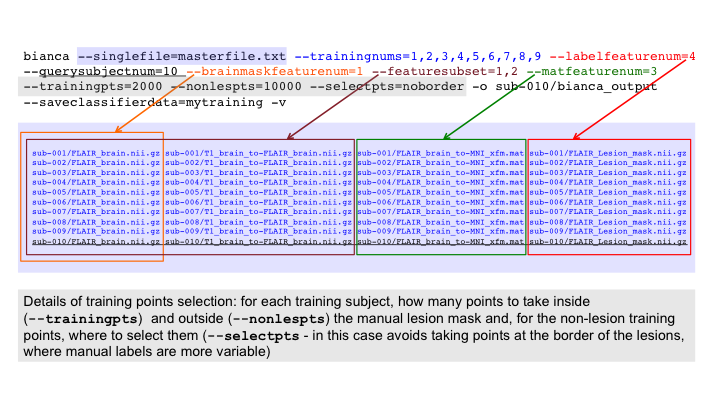
FLAIR_brain.nii.gz: main structural image, brain extractedFLAIR_Lesion_mask.nii.gz: binary manual lesion mask for the subjects used to train BIANCAFLAIR_brain_to-MNI_xfm.mat: transformation matrix from subject space (main structural image) to standard space (optional). This is to be able to use spatial features (MNI coordinates)T1_brain_to-FLAIR_brain.nii.gz: additional input (optional). Other modalities that can help the lesion segmentation (e.g. T1), all registered to the main image. Click here to see how it was obtained.
Look at your data on FSLeyes:
fsleyes T1_brain_to-FLAIR_brain.nii.gz FLAIR_brain.nii.gz FLAIR_Lesion_mask.nii.gz -cm red -a 70 &
Master file preparation
Now we need to put the information on where to find these files for each subject in a text file (master file),
which we will later give as input to BIANCA.
The master file is a text file containing one row per subject and,
on each row, a list of all files for that subject (columns).
Note: the order of the columns is not important, as long as it is the same for each subject/row.
FLAIR_Lesion_mask.nii.gz also for sub-010,
which has no manual mask.
This because we need to maintain the same structure of columns in the master file.Since we will tell BIANCA to segment lesions for this subject,
sub-010/FLAIR_Lesion_mask.nii.gz will just act as a "placeholder"
and BIANCA will not look for the image.
Have a quick look at the content of the file we have already prepared for you:
cd ~/fsl_course_data/seg_struc/bianca
cat masterfile.txt
This is how it should look like:
sub-001/FLAIR_brain.nii.gz sub-001/T1_brain_to-FLAIR_brain.nii.gz sub-001/FLAIR_brain_to-MNI_xfm.mat sub-001/FLAIR_Lesion_mask.nii.gz
sub-002/FLAIR_brain.nii.gz sub-002/T1_brain_to-FLAIR_brain.nii.gz sub-002/FLAIR_brain_to-MNI_xfm.mat sub-002/FLAIR_Lesion_mask.nii.gz
sub-003/FLAIR_brain.nii.gz sub-003/T1_brain_to-FLAIR_brain.nii.gz sub-003/FLAIR_brain_to-MNI_xfm.mat sub-003/FLAIR_Lesion_mask.nii.gz
sub-004/FLAIR_brain.nii.gz sub-004/T1_brain_to-FLAIR_brain.nii.gz sub-004/FLAIR_brain_to-MNI_xfm.mat sub-004/FLAIR_Lesion_mask.nii.gz
sub-005/FLAIR_brain.nii.gz sub-005/T1_brain_to-FLAIR_brain.nii.gz sub-005/FLAIR_brain_to-MNI_xfm.mat sub-005/FLAIR_Lesion_mask.nii.gz
sub-006/FLAIR_brain.nii.gz sub-006/T1_brain_to-FLAIR_brain.nii.gz sub-006/FLAIR_brain_to-MNI_xfm.mat sub-006/FLAIR_Lesion_mask.nii.gz
sub-007/FLAIR_brain.nii.gz sub-007/T1_brain_to-FLAIR_brain.nii.gz sub-007/FLAIR_brain_to-MNI_xfm.mat sub-007/FLAIR_Lesion_mask.nii.gz
sub-008/FLAIR_brain.nii.gz sub-008/T1_brain_to-FLAIR_brain.nii.gz sub-008/FLAIR_brain_to-MNI_xfm.mat sub-008/FLAIR_Lesion_mask.nii.gz
sub-009/FLAIR_brain.nii.gz sub-009/T1_brain_to-FLAIR_brain.nii.gz sub-009/FLAIR_brain_to-MNI_xfm.mat sub-009/FLAIR_Lesion_mask.nii.gz
sub-010/FLAIR_brain.nii.gz sub-010/T1_brain_to-FLAIR_brain.nii.gz sub-010/FLAIR_brain_to-MNI_xfm.mat sub-010/FLAIR_Lesion_mask.nii.gz
The master file can be prepared using any text editor (or with excel and exporting it in txt format), but it's quicker with some scripting (click here to see how you can do it).
Running BIANCA
Now we can give the master file as input to BIANCA, together with details on where to find the information inside it, and some additional information:
--singlefile=masterfile.txt"];
2 [label="Training: training subjects --trainingnums (rows n.)
+ lesion masks --labelfeaturenum (column n.) or training file --loadclassifierdata"];
3 [label="Test: test subject --querysubjectnum (row n.) "];
4 [label="Brain extracted image: --brainmaskfeaturenum (column n.)"];
5 [label="BIANCA"];
6 [label="Lesion Probability map: -o bianca_output.nii.gz"];
7 [label="[optional] Training file: --saveclassifierdata"];
8 [label="[optional] List of intensity features: --featuresubset (columns n.)"];
9 [label="[optional] Transformation matrix to derive spatial features: --matfeaturenum (column n.)"];
10 [label="other options (see documentation)"];
1 -> 5;
2 -> 5;
3 -> 5;
4 -> 5;
5 -> 6;
5 -> 7;
8 -> 5;
9 -> 5;
10 -> 5
}
Run BIANCA with the following call (you can ignore warning messages):
bianca --singlefile=masterfile.txt --trainingnums=1,2,3,4,5,6,7,8,9 --labelfeaturenum=4 \
--querysubjectnum=10 --brainmaskfeaturenum=1 --featuresubset=1,2 --matfeaturenum=3 \
--trainingpts=2000 --nonlespts=10000 --selectpts=noborder -o sub-010/bianca_output \
--saveclassifierdata=mytraining -v
Try to understand what the different options/flags mean and check your answer here. For more details consult the help (type
bianca in the terminal) or the BIANCA documentation page.
Look at the output
Let's have a look at the Lesion Probability Map:fsleyes sub-010/FLAIR_brain.nii.gz sub-010/bianca_output.nii.gz -cm red-yellow -a 70 &
Play with the display range to see which (minimum) threshold gives you a good lesion segmentation. Keep FSLeyes open.
Since we used the option --saveclassifierdata we also have two additional outputs:
- mytraining: file containing the features derived from the training points
- mytraining_labels: file containing the labels (lesion/non-lesion) for the training points
After running BIANCA
Thresholding. BIANCA output is a probability map. However, for most of the applications we want a binary lesion mask, so we need to apply a threshold and binarise the image. In this case we chose a threshold of 0.9:fslmaths sub-010/bianca_output.nii.gz -thr 0.9 -bin sub-010/bianca_output_bin.nii.gz
Add the thresholded lesion map in FSLeyes and look at the results. Keep FSLeyes open.
Masking. To further reduce false positive voxels, we can mask our output. For example, we can exclude areas we are either not interested in (e.g. the cortex), or where BIANCA currently struggles to correctly segment lesions (e.g. subcortical structures and cerebellum).
In this case we prepared such a mask for you: sub-010/prebaked/T1_bianca_mask_to-FLAIR_bin.nii.gz.
Have a look at it on FSLeyes.
How do you apply the mask to the lesion map using fslmaths?
Check the command line here.
Add the masked lesion map on FSLeyes and look at the results.
The mask we just used was created using BIANCA side-script make_bianca_mask (more details on the BIANCA documentation page)
Optional extension: to see how to create and apply the mask, click here.
Volume calculation. How would you calculate the volume (in mm3) of the final lesion map using fslstats? Check your answer here.
Extension: segment lesions for a new subject with existing BIANCA training file
In the example above, we trained and tested BIANCA within a single call. Since we saved the training files (features and labels)
we can apply BIANCA to one (or more) new subject(s) without the need to re-train BIANCA.
How would you use BIANCA to segment lesions on a new subject (e.g. sub-011, not present in this dataset), using the training file we obtained above?
Consult the BIANCA documentation page if you are unsure. Check your answer here.
Advanced extension: training and testing with leave-one-out
In BIANCA, if
--querysubjectnum is also included in the --trainingnums list,
it is automatically excluded from the training set. In this way we can look at how well the lesion mask obtained
with BIANCA compares with the manual mask.
bianca --singlefile=masterfile.txt --trainingnums=1,2,3,4,5,6,7,8,9 --labelfeaturenum=4 --querysubjectnum=1 \
--brainmaskfeaturenum=1 --featuresubset=1,2 --matfeaturenum=3 \
--trainingpts=2000 --nonlespts=10000 --selectpts=noborder -o sub-001/bianca_output -v
Open the output on FSLeyes, together with the FLAIR image and the manual mask.
Performance metrics. If we want to quantify how well the automated segmentation with BIANCA matches the manual mask, we can calculate some performance metrics. BIANCA side-scriptbianca_overlap_measures can calculate some commonly
used metrics. Check the usage and the metrics that will be calculated on the help (type bianca_overlap_measures in the terminal)
or on the BIANCA documentation page.
bianca_overlap_measures sub-001/bianca_output 0.9 sub-001/FLAIR_Lesion_mask.nii.gz 1How can you assess the performance on BIANCA output after masking (you can find the mask in
prebaked_advanced/T1_bianca_mask_to-FLAIR_bin.nii.gz? Check your answer here.
More details and guidelines for your analysis can be found in the BIANCA documentation.
SIENA (Optional)
SIENA is a package for both single-time-point ("cross-sectional") and two-time-point ("longitudinal") analysis of brain change, in particular, the estimation of atrophy (volumetric loss of brain tissue).
cd ~/fsl_course_data/seg_struc/siena
ls
The example data is two time points, 24 months apart, from a subject with probable Alzheimer's disease. The command that was used to create the example analysis is (don't run this - it takes too long!):
siena sub3m0 sub3m24 -d -m -b -30
The -d flag tells the siena script not to clean up the many
intermediate images it creates - you would not normally use this. The other
options are explained later.
SIENA has already been run for you. Change directory into the SIENA output directory:
cd sub3m0_to_sub3m24_siena
ls
In the SIENA output directory the first timepoint image is named
"A" and the second "B", to keep filenames simple and
short. To view the output report, open report.html in a web
browser. The next few sections take you through the different parts of the
webpage report, which correspond to the different stages of the SIENA
analysis.
BET brain extraction results
First BET was run on the two input images, with options telling it to create the skull surface image and the binary mask image, as well as the default brain image.
Other BET options can be included in the call to siena by adding
-B "betopts" - for example
siena sub3m0 sub3m24 -d -m -b -30 -B "-f 0.3"
the command line tells siena to pass on the -f 0.3
option to BET, which causes the estimated brain to be larger if the value used
is less than 0.5, and smaller otherwise.
You also might need to use the -c option to BET if you need to
tell BET where to center the initial brain surface, such as when you have a
huge amount of neck in the image. For example, if it looks like the centre of
the brain is at 112,110,78 (in voxels, e.g. as viewed in FSLeyes),
and you want to combine this option with the above -f option, you
would add, to the siena command,
siena sub3m0 sub3m24 -d -m -b -30 -B "-f 0.3 -c 112 110 78"
You can see the two brain and skull extractions in the webpage report. If you want to see these in more detail, open the relevant images in FSLeyes, for example:
fsleyes A A_brain -cm red-yellow A_brain_skull -cm green &
Be aware that the skull estimate is usually very noisy but that it is only used to determine the overall scaling and this process is not very sensitive to the noise as long as the majority of points lie on the skull.
FLIRT A-to-B registration results
Now the two time points are registered using the script
siena_flirt. This runs the 3-step registration (brains, then
skulls, then brains again). The transformation is "halved" so that
each image can be transformed into the space halfway between the two. The
webpage report shows the alignment of the two brains in this halfway
space. You need to check that the two timepoints are fundamentally
well-aligned, with only small (e.g. atrophy) changes between them. Look out
for mistakes such as: the two images coming from different subjects, one image
being left-right flipped relative to the other one, or one image having bad
artefacts.
If you want to look at the registration in more detail:
fsleyes A_halfwayto_B_brain B_halfwayto_A_brain &
FLIRT standard space registration results
Now, if standard-space-based masking has been requested (it was in
this case, using the -m option in the command above), the two brain images are registered to the standard brain
$FSLDIR/data/standard/MNI152_T1_2mm_brain using FLIRT. The
transforms (and their inverses) are saved. The two brains are registered
separately and their transforms compared to test for consistency.
The webpage report shows the two images transformed into standard space, with the overlaying red lines derived from the edges of the standard space template, for comparison.
Field-of-view and standard space masking
If the -m option was set, a standard space brain mask is now
transformed into the native image space and applied to the original brain
masks produced by BET. This is in most areas a fairly liberal (dilated) brain
mask, except around the eyes.
If the -t or -b options are set then an upper or
lower limit (in the Z direction) in standard space is defined, to supplement
the masking. This is useful, for example, to restrict the field-of-view of the
analysis if you have variable field-of-view at the top or bottom of the head
in different subjects.
Here you can see the bottom of the temporal lobes have not been included in the regions fed into the boundary edge movement analysis. You would use such a setting if these regions had not been acquired in one/some of the subjects in your dataset.
The webpage report shows the -m brain masking in blue,
the -t/-b masking in red (you can see the effect of
the -b -30 option), and the intersection of the two maskings in
green. It is this intersection that is what gets finally used.
FAST tissue segmentation
In order to find all brain/non-brain edge points, tissue-type segmentation is now run on both brain-extracted images. The GM and WM voxels are combined into a single mask, and the mask edges (including internal ventricle edges) are used to find edge motion (discussed below). The webpage report shows the two segmentations.
Change Estimation
The final step is to carry out change analysis on the registered masked brain images. At all points which are reported as boundaries between brain and non-brain, the distance that the brain surface has moved between the two time points is estimated. The mean perpendicular surface motion is computed and converted to PBVC (percentage brain volume change).
The webpage report shows the edge motion colour coded at the brain edge points, and then shows the final global PBVC value. To see the edge motion image in more detail:
fsleyes A_halfwayto_B_render -cm render1 &
If you are interested to look at 4 examples of "problem cases" using SIENA, see the advanced practical
SIENAX (Optional)
cd ~/fsl_course_data/seg_struc/siena/sub3m0_sienax
In this section we look at how SIENAX works and look at the most useful outputs. SIENAX estimates total brain tissue volume, from a single image, normalised for skull size.
Open report.html in a web browser. The example data is one
time point from a subject with probable Alzheimer's disease. The command that
was used to create the example analysis is (don't run this!):
sienax sub3m0 -d -b -30 -r
SIENAX starts by running BET and FLIRT in a manner very similar to SIENA, except that the second time point image is replaced by standard space brain and skull images. Next a standard space brain mask is always used to supplement the BET segmentation.
As before, optional Z limits in standard space can be used to mask further.
Next, FAST is used, with partial volume estimation turned on, to provide an accurate estimate of grey and white matter volumes. In order to provide normalised volumes for GM/WM/total, the volumetric scaling factor derived from the registration to standard space is used to multiply the native volumes; the values are thus normalised for head size.
The End.